
Step 1
Log into your Administrative account at NHANOW.com

Step 2
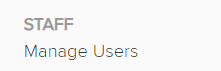
If you have permission through your NHA account to add a user, select the Manage Users link under Staff on the left-hand side
Step 3
Locate the user you want to remove and select the wrench icon to the right of their name
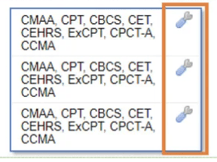
*Note: You will only see those who have Instructor-level or lower access on this list. Anyone with Director-status can add/remove users and they will not be visible to you here.
Step 4
Select the Institutions tab at the top of the screen

Step 5
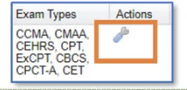
You should see a wrench next to the certifications visible to this user. Select this icon
Step 6
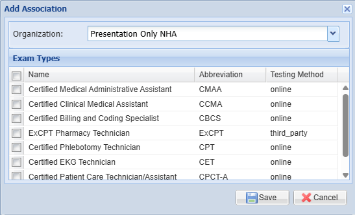
Deselect all certifications from this user and press save
Step 7
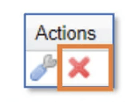
Press the Red X next to the wrench
Step 8
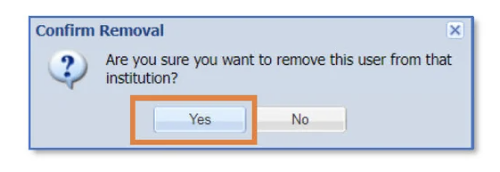
Confirm your intention to remove the user from access to your administrative account by pressing Yes. This will remove the user from access to your account.
For more information on how to add a user from your account, read this article.