
Starting in July 2026, director and instructor users will have access to a brand-new dashboard designed to give quicker access to analytics that help you understand your learner's progress. The dashboard is designed to help users move from data access to actionable insight by:
-
Simplifying how data is filtered and viewed
-
Providing real-time snapshots of learner progress
-
Connecting summary insights to deeper analysis tools
-
Keeping frequently used reports and resources easily accessible
Here are the key new features of the dashboard:
Filter
Select which relevant certifications, courses, or materials that you want to appear on your dashboard reports.
This allows users to narrow in on specific programs or cohorts, compare performance across different offerings, and align analytics with program goals or reporting needs.
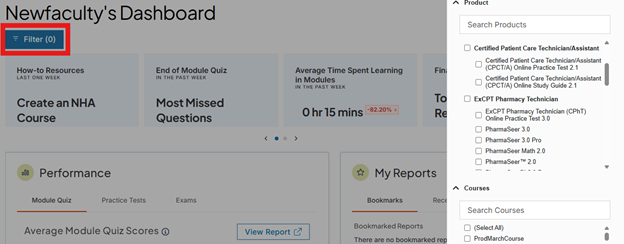
Topline Analytics
These cards are designed to show you up-to-date information from the filter selections you chose. Some of these cards will take you to the Learner Insights Center (LIC) for more information, and others will open sidesheets to give you more information.
These analytics help users identify trends or concerns early and provide a direct path from summary to deeper analysis.
The data on these cards reflects what learners have done in the previous week.

Performance Panel
This panel shows data about Module Quiz Scores, Practice Tests, and Exam data.
This panel provides a quick view of recent scores for module quizzes and practice tests and directs you to the LIC to dig deeper. This panel helps identify areas where learners may need intervention and monitor readiness across assessment types.
The Exam data will not react to the filters selected. It is only available institution-wide.

My Reports Panel
Quickly find any reports you have bookmarked in the LIC, or reports that you viewed recently. This saves time and supports consistent tracking of priority metrics over time.
If you bookmark a report in the LIC and return to the dashboard, you may need to wait a few minutes and reload the page before it appears here.
-png-1.png?width=390&height=294&name=image%20(3)-png-1.png)
Frequently Asked Questions
Access our most popular Help Center articles, including How To guides and FAQs to help you best use NHA resources.
Want to learn more about using NHA reports and the Learning Insights Center? Check out our recent and upcoming webinars.